Connect CookUnity with your email and password
Bodymaxxer reads your CookUnity menu and deliveries and drafts your weekly order. It never places an order until you tap Approve in chat. To do that it signs in to CookUnity for you, so it needs a login it can use on its own: your CookUnity email and a CookUnity password.
If you signed up for CookUnity with Apple, Google or Facebook, you don’t have a CookUnity password yet. You can add one in two minutes and keep the same account, with the same subscription, deliveries and history. That beats the token method (see Connect CookUnity with a session token), which stops working whenever CookUnity signs you out.
Step 1: Add a password to your CookUnity account
Skip this step if you already sign in to CookUnity with an email and password.
-
Go to subscription.cookunity.com. If you’re signed in, sign out first.
-
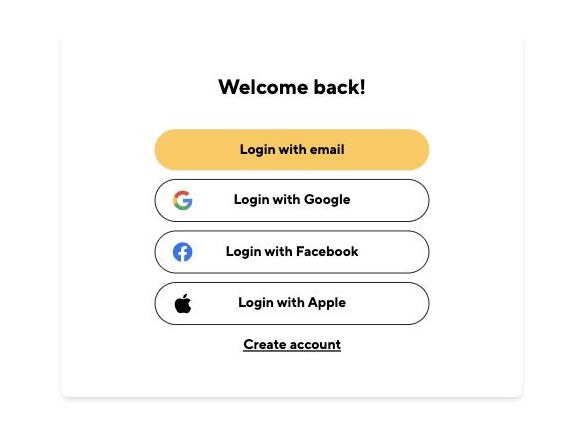
Choose Login with email. Do not choose Apple, Google or Facebook.
-
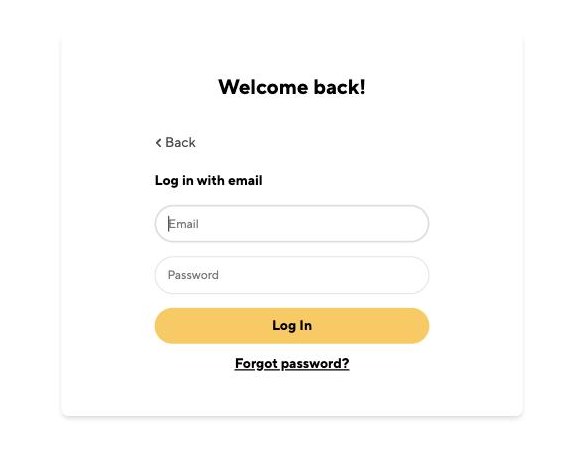
Click Forgot password? under the Log In button.
-
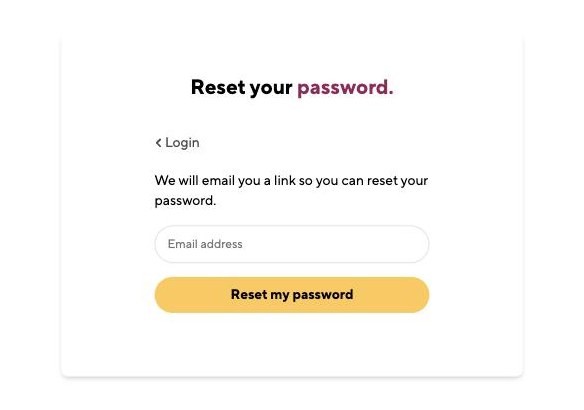
Enter the email address your CookUnity account uses (see “Which email?” below) and click Reset my password.
-
CookUnity emails you a reset link. Open it and choose a password. If nothing arrives within a few minutes, check spam, then use Resend link.
-
Back on the login page, choose Login with email and sign in with the email and your new password. You should see your usual subscription and upcoming deliveries. You can still sign in with Apple or Google as before; both open the same account.
Which email?
- Signed up with Google: your Gmail address.
- Signed up with Apple and shared your email: your Apple ID email.
- Signed up with Apple and chose “Hide My Email”: CookUnity knows you by a relay address that ends in
@privaterelay.appleid.com. To find it on your iPhone, open Settings → [your name] → Sign in with Apple (on some iOS versions it’s under Sign-In & Security) and tap CookUnity. Use that relay address in the reset form and in Bodymaxxer. The reset email is forwarded to your real inbox.
If the reset email never arrives for any address you try, contact CookUnity support from the Need Help? link and ask them to add an email login to your account.
Step 2: Connect CookUnity in Bodymaxxer
-
In Bodymaxxer, open Settings → Integrations (account menu at the top right → Settings).
-
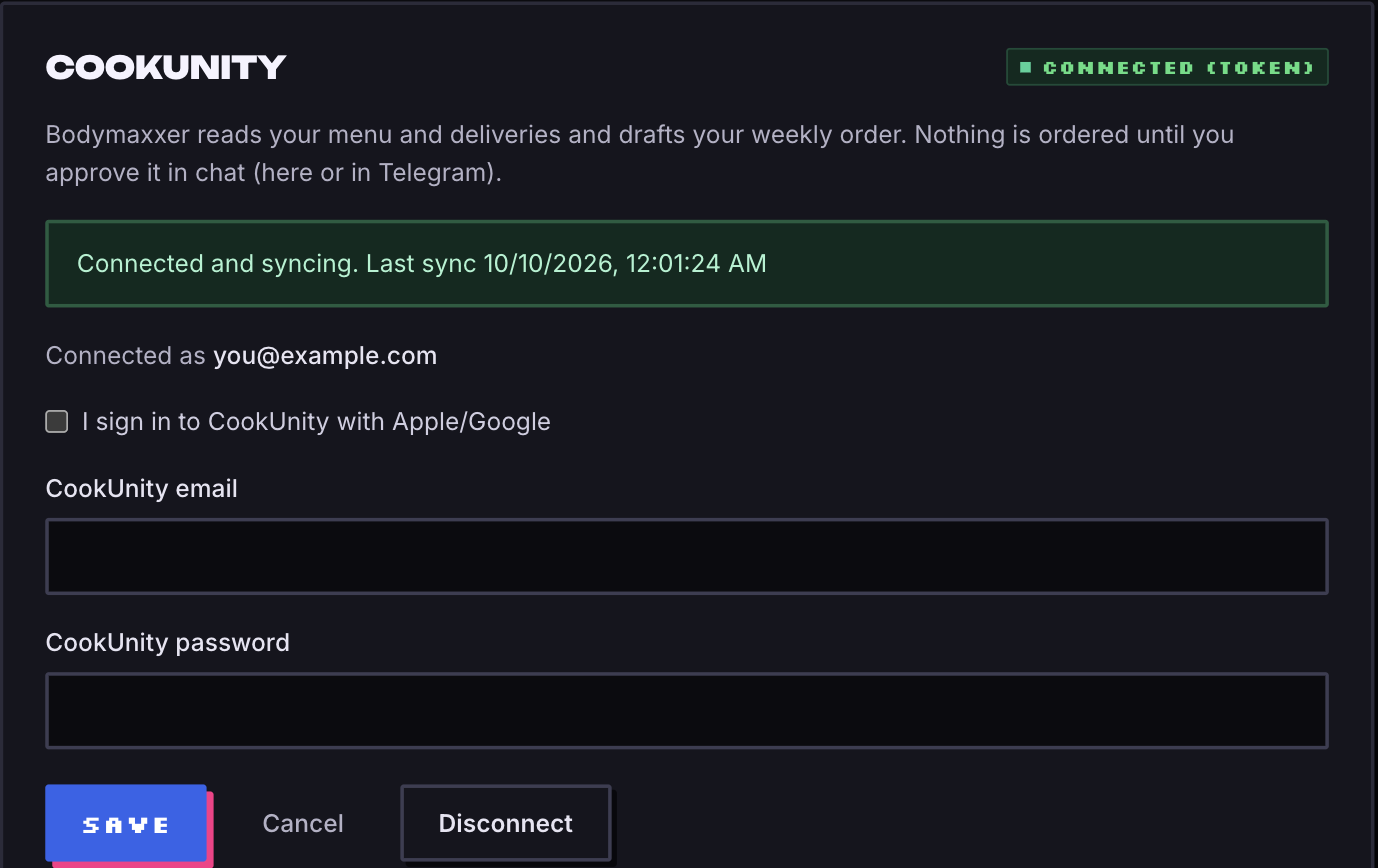
On the CookUnity card, leave I sign in to CookUnity with Apple/Google unchecked.
-
Enter your CookUnity email and password, then click Connect (or Save if you’re changing an existing login).
-
The first sync runs within 15 minutes, and then Bodymaxxer sends you a summary of your CookUnity weeks. After that the card says Connected and syncing and shows the account it signed in to. Send
/syncin chat to sync again at any time, or/fridgeto see what’s on hand.
Your password is stored encrypted and used only to read your menu and deliveries and to place orders you approve. If you change your CookUnity password later, enter the new one with Change login on the same card.
Troubleshooting
- “CookUnity login failed. Check the email and password and save again.”: the email or password doesn’t match what CookUnity has. Sign in at subscription.cookunity.com with Login with email to check it, then save the login again in Bodymaxxer.
- Connected, but no meals or deliveries: check that the email is the one on your real subscription, not a second account you created by accident. The “Connected as” line on the card shows which account Bodymaxxer uses.
Still stuck? Write to [email protected] or ask the coach in chat.