Connect CookUnity with a session token
Try Connect CookUnity with your email and password first. An account created with Apple or Google can get a password through CookUnity’s “Forgot password?” link, keeps the same subscription, and never needs this page again.
Use the token method only if you can’t add a password. A session token is the key CookUnity’s website keeps in your browser after you sign in. Bodymaxxer can use that key instead of a password, but it stops working if CookUnity signs you out or revokes it. When that happens, you repeat these steps.
You need a computer with Chrome (Edge and Brave work the same way). This won’t work on a phone.
Step 1: Sign in to CookUnity in Chrome
- Open subscription.cookunity.com and sign in the way you normally do (Apple or Google).
- Wait until you see your meals or account page.
Step 2: Open the developer tools
Press F12, or on a Mac ⌘ Option I (Command + Option + I). A panel opens at the side or bottom of the window. You can also use Chrome’s menu: ⋮ → More tools → Developer tools.
Step 3: Find the token
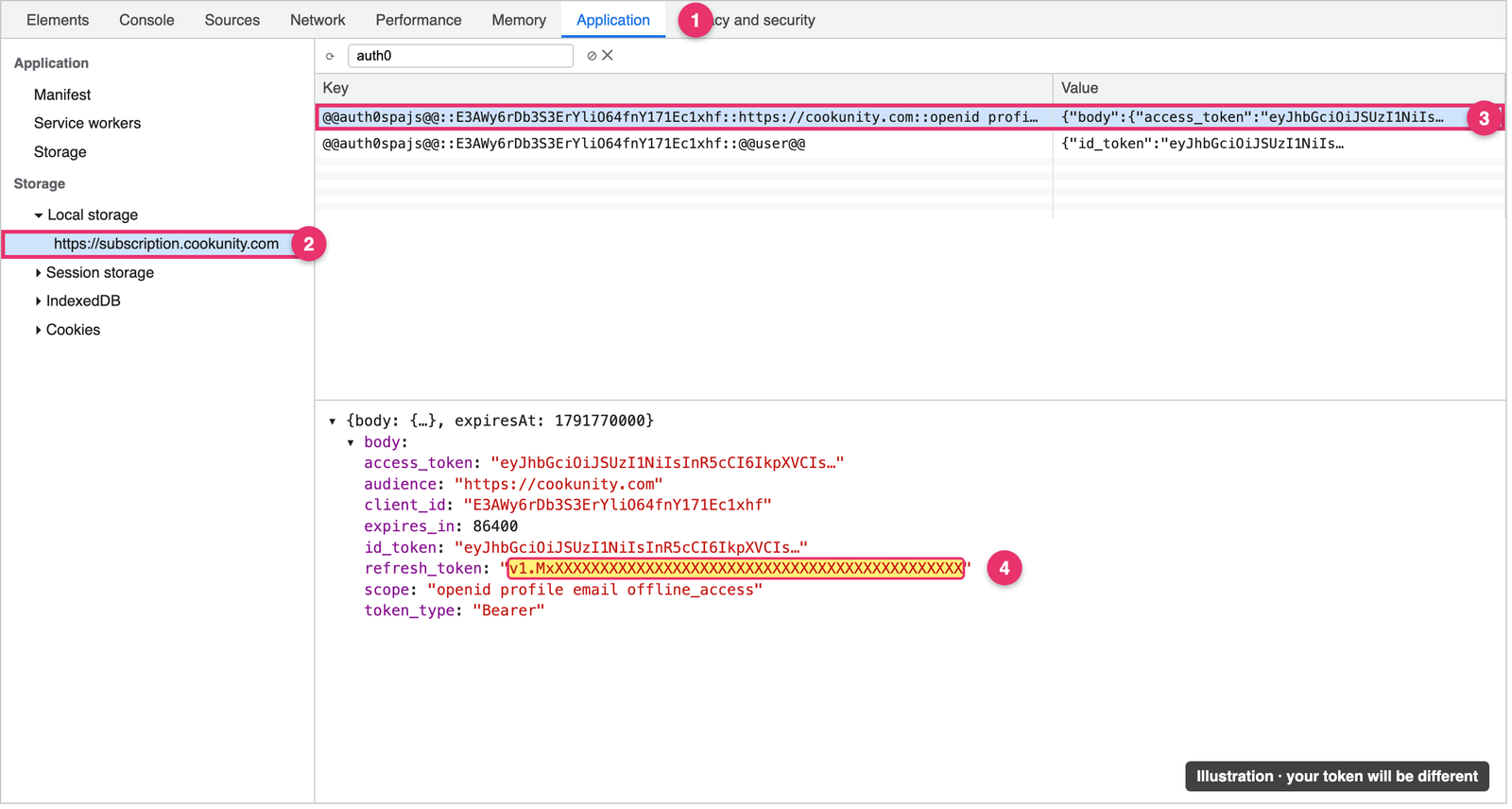
Illustration. Your key and token will be different. Click the picture to enlarge it.
- At the top of the panel, click the Application tab. If you can’t see it, click » to show more tabs.
- In the left column, open Local storage and click https://subscription.cookunity.com.
- In the list of keys, click the one that starts with
@@auth0spajs@@and ends inoffline_access. Typingauth0in the Filter box narrows the list. - The bottom pane shows the value. Find
refresh_token. Its value starts withv1.. Select the text between the quotes, fromv1.to the last character before the closing quote, and copy it (⌘C or Ctrl+C). If you copy the quotes too, that’s fine: Bodymaxxer removes them.
Step 4: Paste it into Bodymaxxer
-
In Bodymaxxer, open Settings → Integrations.
-
On the CookUnity card, check I sign in to CookUnity with Apple/Google.
-
Paste the token into CookUnity refresh token and click Connect (or Save if you’re replacing an old one).
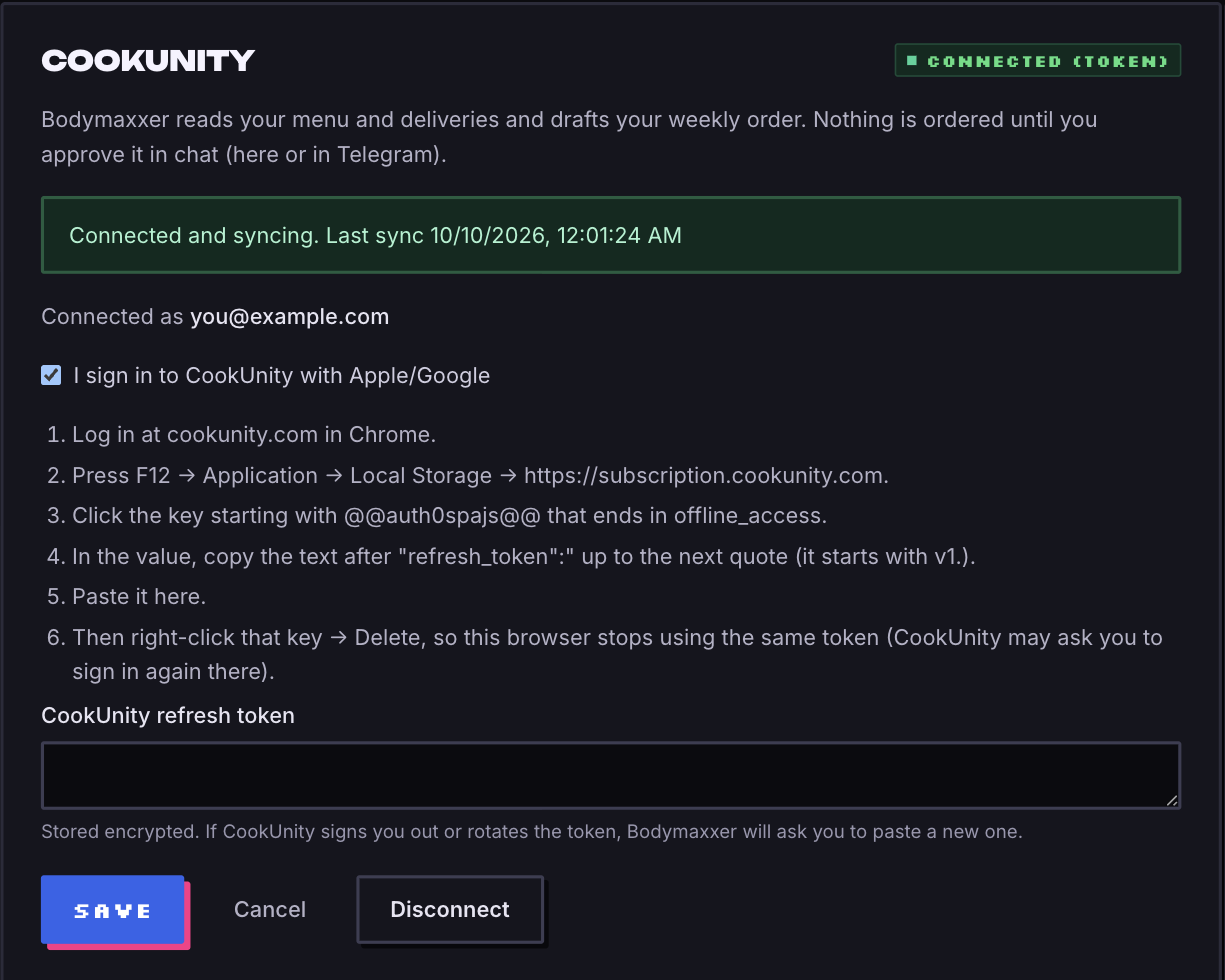
The card shows Connected (token). The first sync runs within 15 minutes.
Step 5: Delete the key from your browser
Do this right away. Each token can be used only once. CookUnity gives out a new one every time it is used. If your browser and Bodymaxxer both hold the same token, whichever uses it second is refused, and CookUnity may cancel the token everywhere, including Bodymaxxer’s copy.
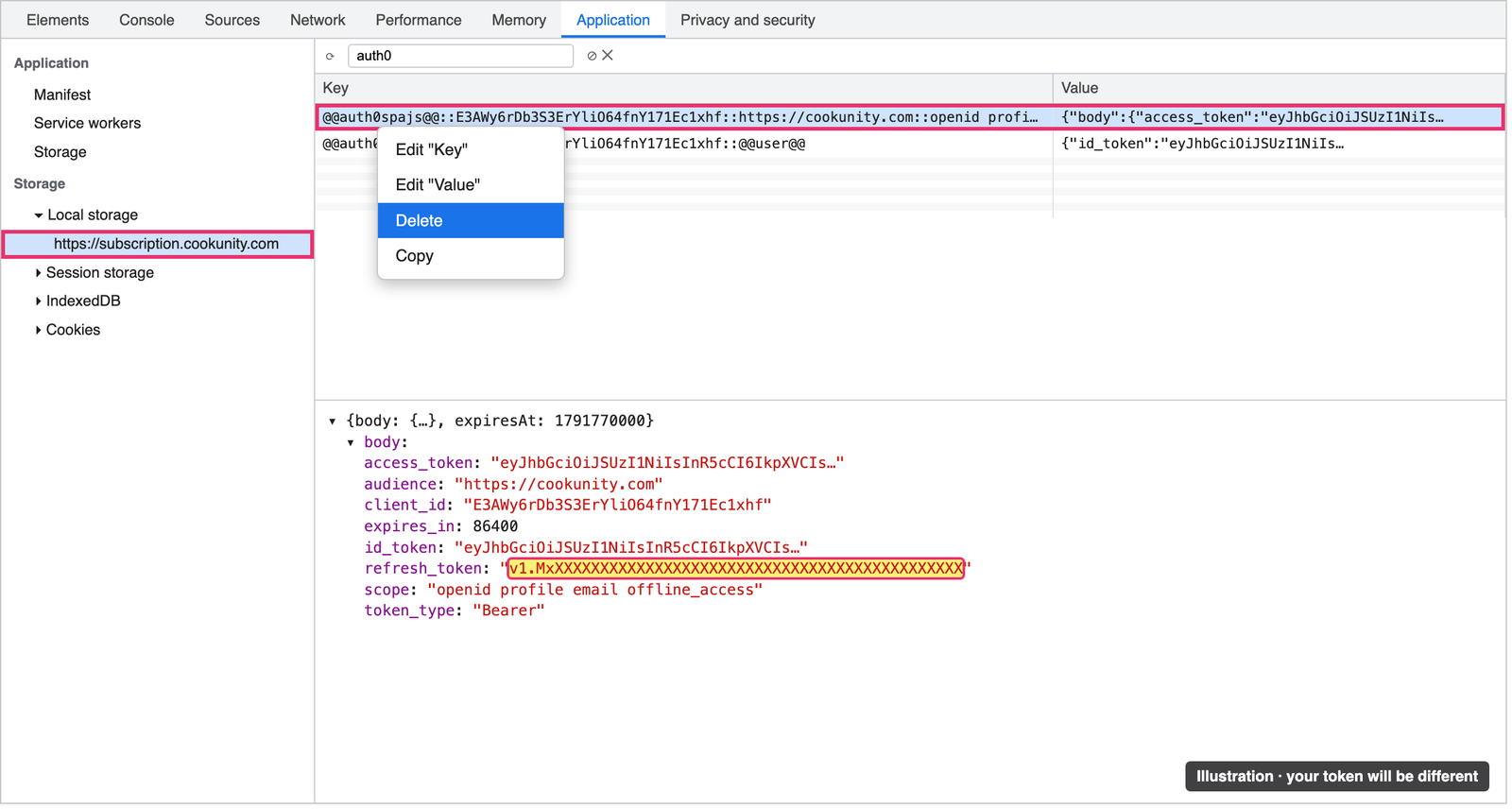
Illustration.
- Back in the developer tools, right-click the same
@@auth0spajs@@ … offline_accesskey. - Choose Delete.
- Close the developer tools. CookUnity may ask you to sign in again in this browser, and that’s expected. Signing in again creates a new, separate token for the browser and doesn’t affect Bodymaxxer’s.
Keep it safe
- The token works like a password for your CookUnity account. Paste it only into Bodymaxxer’s Settings page. Never send it in chat, email or a screenshot.
- Don’t paste the same token in two places, and don’t reuse an old one.
- Never paste code into the developer tools’ Console because a page, a message or a person told you to. You only need the Application tab for these steps.
When the token stops working
When CookUnity revokes the token or signs you out, Bodymaxxer tells you: “Your CookUnity session token stopped working (CookUnity rotated or revoked it). Paste a new one in Settings → CookUnity.” Sign in to CookUnity in Chrome again and repeat steps 2 to 5. To stop doing this for good, add a password instead: Connect CookUnity with your email and password.
Still stuck? Write to [email protected] or ask the coach in chat.