Connect your Renpho scale
Bodymaxxer reads your weigh-ins from your Renpho account, so every time you step on the scale your weight and body fat reach your dashboard and the weekly review can adjust your calories. Renpho has no “Connect” button for other apps, so Bodymaxxer signs in to Renpho with your Renpho email and password and only reads your measurements.
If you signed up for the Renpho Health app with Apple (or Google), you don’t have a Renpho password yet. Add one first (Step 1). Don’t create a new Renpho account with your email: that gives you a second, empty account, your scale keeps saving to the old one, and nothing reaches Bodymaxxer.
Step 1: Give your Renpho account a password
Skip this step if you already sign in to Renpho with an email and password.
- Find your Renpho account email (see “Which email?” below).
- In the Renpho Health app, sign out: Me → Settings → Log out (at the bottom of Settings).
- On the login screen, tap Forget your password?
- Enter your Renpho account email and request the verification code. The code arrives by email and expires after 30 minutes. If it doesn’t show up within a few minutes, check spam, wait 2–3 minutes and resend.
- Enter the code and choose a password: 6 to 16 characters, letters and numbers.
- Sign in with the email and the new password. Check that your weigh-in history is there. If it’s empty, you’re in a different account: sign out and sign in with Apple again to compare.
Leave the phone app signed in to this account. Your scale sends readings to whichever account the app is signed in to, and Bodymaxxer can only see that one account.
Which email?
- Signed up with Apple and shared your email: your Apple ID email.
- Signed up with Apple and chose “Hide My Email”: Renpho knows you by a relay address that ends in
@privaterelay.appleid.com. To find it on your iPhone, open Settings → [your name] → Sign in with Apple (on some iOS versions it’s under Sign-In & Security) and tap Renpho. Use that relay address in the reset form and in Bodymaxxer. Renpho’s email is forwarded to your real inbox. - Signed up with email: that email.
If Renpho never sends a code to any address you try, write to [email protected] and ask them to add an email and password login to your account. Mention that you signed up with Apple.
Step 2: Connect Renpho in Bodymaxxer
-
In Bodymaxxer, open Settings → Integrations (account menu at the top right → Settings). You can also do this during sign-up.
-
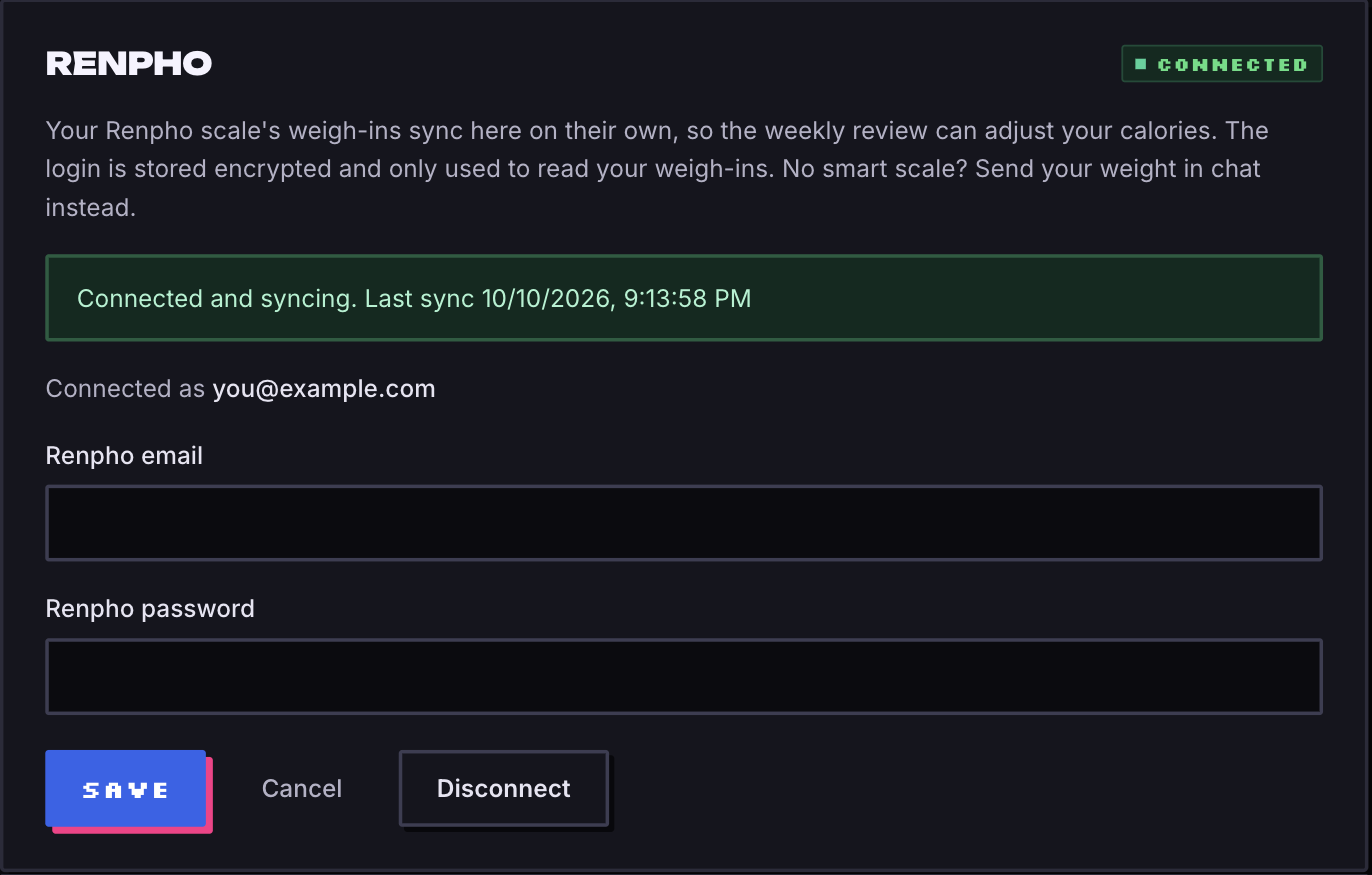
On the Renpho card, enter your Renpho email and password and click Connect.
-
Your weigh-ins arrive within 4 hours. To fetch them now, click Sync now on the card, or send
/weighin chat. Your first sync pulls your whole history and can take up to two minutes.
The card then says Connected and syncing and shows “Connected as” with the Renpho account it reads.
Weigh in so it counts
- Step on the scale with the Renpho app open (or nearby with Bluetooth on) so the reading reaches your Renpho account. Bodymaxxer checks every 15 minutes for the first two hours after your usual wake-up time, and every 4 hours the rest of the day.
- Weigh in daily if you can. The weekly review needs at least 8 weigh-ins over 10 or more days before it changes your calories.
Troubleshooting
- “Last sync failed … Check the email and password and save again.”: the login was refused. Sign in to the Renpho app with that exact email and password to check it, then click Change login on the card and save it again.
- New weigh-ins don’t show up: the Renpho app on your phone is probably signed in to a different account from the one Bodymaxxer reads. Compare the “Connected as” email on the card with Me in the app.
- Someone else’s weights appear: if family members use your scale under your account, make sure each person has their own user in the Renpho app (Settings → User Management). Bodymaxxer reads only the main user of the account it signs in to.
Still stuck? Write to [email protected] or ask the coach in chat.